This is Part 2 of our three-part series: Automating Your Twitch Content. Part 1: Why Manual Distribution Is Killing Your Growth | Part 3: Optimising for Maximum Reach
Why Automate Your Twitch Clip Distribution?
If you read Part 1 of this series, you already know the painful truth: manually downloading, reformatting, captioning, and posting your Twitch clips across social media is a massive time sink that most streamers can't sustain. But let's put some numbers behind that.
There are now over 7 million unique channels going live on Twitch every month. That's an enormous amount of competition for eyeballs. Meanwhile, 64% of creators cite time management as the number one barrier to producing quality content consistently. When you're juggling a day job, real-life responsibilities, or simply struggling with motivation dips, the last thing you want is to spend hours each week manually posting clips across five different platforms.
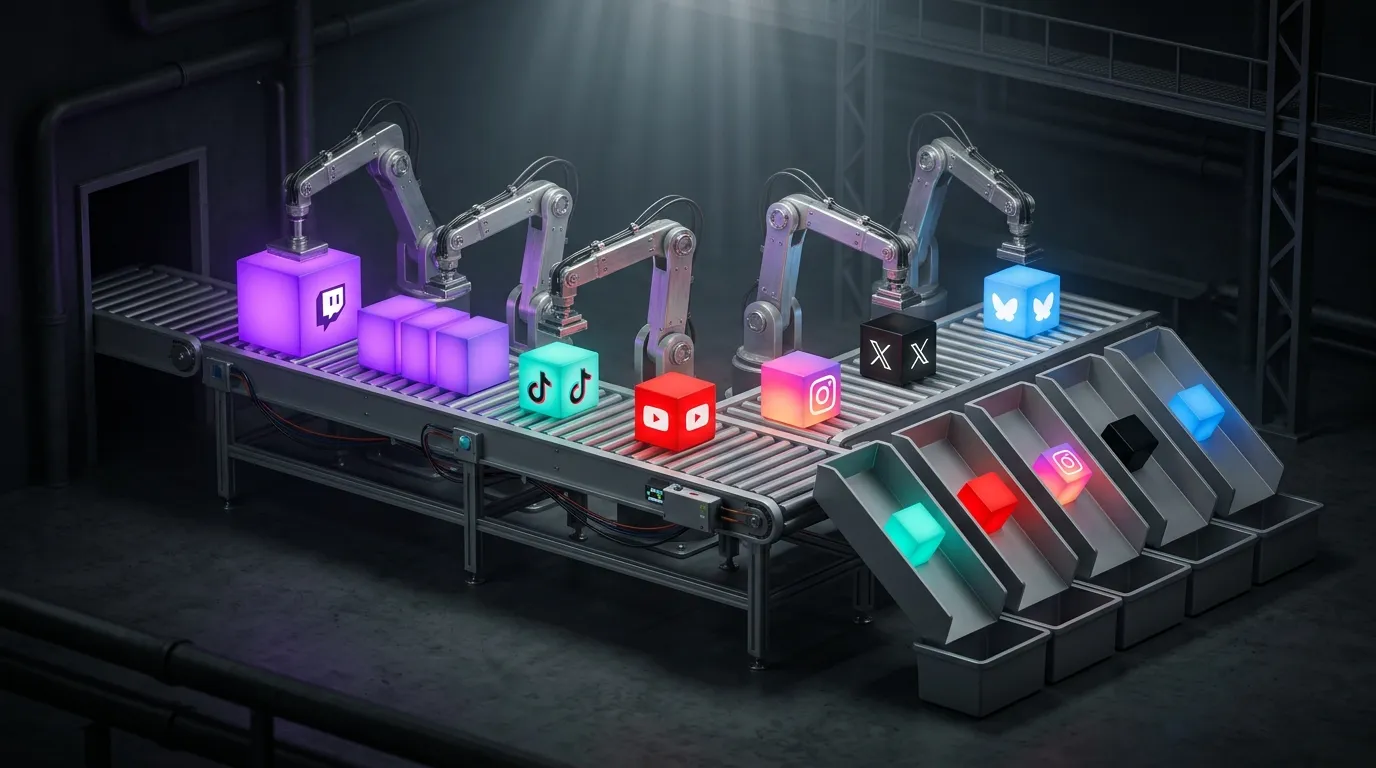
That's where automation changes everything. "Set it and forget it" isn't just a catchy phrase. It means you connect your accounts once, configure your preferences, and from that point forward, your best Twitch moments land on TikTok, YouTube Shorts, Instagram Reels, X, and Bluesky without you lifting a finger. You stream, you go about your day, and your content keeps working for you in the background.
Research from Automateed shows that creators who post to three or more platforms consistently outperform single-platform creators in total reach, engagement, and revenue. The problem was never whether multi-platform posting works. It's that doing it manually is unsustainable.
This guide walks you through exactly how to set up automated clip distribution with Streamer Share, step by step. Whether you're brand new or already familiar with the platform, you'll have everything running in under 15 minutes.
What You Need Before You Start
Before we jump into setup, here's a quick checklist of what you'll need:
- A Twitch account of any size. There's no minimum follower count or partner requirement. If you've got clips, you're ready.
- Social media accounts on the platforms you want to post to. Streamer Share currently supports YouTube, Instagram, TikTok, X (Twitter), and Bluesky.
- 10 to 15 minutes of uninterrupted time. That's genuinely all it takes for the full setup.
One thing worth mentioning upfront: Streamer Share has a free tier that gives you 100 clip imports per month, 3 connected platforms, and 3 auto-posts per week. You don't need to pay anything to follow along with this guide and get your first automated posts live. If you find yourself wanting more (unlimited platforms, 14 posts per week, or AI-optimised posting times), the paid tiers are there when you're ready.
Step 1: Create Your Account and Connect Twitch
Getting started with Streamer Share is straightforward because it uses Twitch OAuth for login. That means there's no separate account to create, no password to remember, and no email verification loop.
- Head to streamershare.com and click Sign In.
- You'll be redirected to Twitch's authorisation page. Review the permissions and click Authorise.
- That's it. You're now logged in and your Twitch account is already connected.
The moment your account is linked, Streamer Share begins importing your existing Twitch clips automatically. You don't need to download anything, rename files, or convert formats. Within a few minutes, you'll see your clips appear in the Clips section of your dashboard, displayed as a visual card-based library complete with thumbnails, titles, game names, and clip durations.
You can filter your library by orientation (16:9 landscape or 9:16 portrait) which is handy if you're targeting specific platforms. There's also a monthly import counter in the corner so you can keep track of your usage against your plan limit.
If you want to learn more about how Twitch clips work, including how to create them effectively, check out our complete guide to Twitch clips.
Step 2: Connect Your Social Media Platforms
With your Twitch clips imported, it's time to connect the platforms you want to post to. Navigate to Manage Platforms in your dashboard sidebar.
Here's a breakdown of each platform connection and what to expect:
YouTube
Click Connect YouTube and authorise via Google OAuth. Once connected, your clips will automatically upload as YouTube Shorts. You can connect multiple YouTube channels if you run more than one, which is perfect if you have a highlights channel separate from your main one. Maximum upload size is 250 MB.
Connect your Instagram account to post clips as Reels and Stories. Like YouTube, you can connect multiple Instagram accounts. Maximum upload size is 200 MB.
TikTok
TikTok is currently in beta, which means clips post to your private feed first. Full public posting is coming once TikTok completes their platform audit. Each post requires a quick review of visibility settings and content disclosures before it goes live, which TikTok mandates for all third-party tools. Maximum upload size is 200 MB.
X (Twitter)
Connect your X account to share clips directly to your timeline. Multiple account support is available here too. Maximum upload size is 100 MB.
Bluesky
Bluesky is fully supported with direct posting. If you're building a presence on the platform, having your clips land there automatically gives you a head start while the audience is still growing. Maximum upload size is 100 MB.
Each connected platform shows its OAuth token status and expiry date, so you'll know if a connection needs refreshing. YouTube tokens auto-refresh 7 days before they expire, so you rarely need to worry about those.
The Manage Platforms page also displays a Performance Summary at the top: total clips imported, posts scheduled, and total views across your clips. It's a nice quick health check to see how things are tracking.
Step 3: Set Up Your Posting Rules
This is where Streamer Share really stands out from other tools. Most competitors give you a one-size-fits-all caption field. Streamer Share gives you a full Posting Rules Engine with per-platform templates, so your YouTube description can be completely different from your TikTok caption, your X tweet, and your Bluesky post.
Navigate to Posting Rules in your sidebar. You'll see a tab for each connected platform.
Template Variables
Before you start filling in templates, know that Streamer Share supports two powerful template variables that auto-populate for every clip:
{POST_TITLE}inserts the clip's title automatically{GAME_NAME}inserts the game category from the clip
So a YouTube description template like "Check out this {GAME_NAME} clip: {POST_TITLE}! Follow me on Twitch for more." would automatically become "Check out this Valorant clip: Insane Ace Clutch! Follow me on Twitch for more." for each clip. No manual editing required.
Platform-Specific Settings
Each platform has its own configuration options:
- YouTube: Title, category (e.g., Gaming), language, visibility (Public/Private), description, tags (comma-separated, max 15), Made for Kids toggle, Allow Comments toggle, and AI Generated toggle.
- Instagram: Caption title, language, caption text, hashtags (space-separated, max 30), Allow Comments toggle, and AI Generated toggle.
- TikTok: Title, description, hashtags, Allow Comments/Duet/Stitch toggles, and AI Generated toggle.
- X (Twitter): Tweet title, tweet text (with a live 280-character counter), hashtags, and AI Generated toggle.
- Bluesky: Post title, post text (300-character limit with counter), hashtags, and AI Generated toggle.
Take a few minutes to set up each template thoughtfully. Use different hashtag strategies per platform (more on that in the tips section later). Your YouTube tags should be keyword-rich for search discovery, your Instagram hashtags should mix trending and niche tags, and your X post should be punchy and conversational within the character limit.
Step 4: Configure Your Posting Schedule
Still on the Posting Rules page, scroll to the Schedule Configuration section. This is where you tell Streamer Share when to post your clips.
Active Days
Select which days of the week you want clips to go out. You can choose every day, weekdays only, or any custom combination. The dashboard shows your active days count and total weekly posts against your plan limit.
Time Windows
For each active day, you can set specific time windows (e.g., 6:00 PM to 9:00 PM) or select "Any Time" if you're happy for Streamer Share to post whenever a slot is available. Setting time windows is useful if you know your audience is most active during certain hours.
Timezone
All scheduling uses your selected timezone, which defaults to UTC. Make sure to change this to your local timezone (or your audience's primary timezone) so your posts land at the right time. This is a detail many streamers overlook, and it can make a real difference to engagement.
AI Smart Optimisation (Premium+)
If you're on the Premium+ plan, toggle on AI Smart Optimisation. This feature analyses your posting data and automatically selects the best times to post on each platform. According to HubSpot's AI Trends report, 83% of marketers using AI say it frees up time for more strategic and creative work. In this case, it takes the guesswork out of "when should I post?" entirely. You can check your current plan and upgrade options on the pricing page.
Weekly Post Limits by Plan
Your plan determines how many auto-posts you get per week. The free tier allows 3 per week. Premium gives you 14 per week (that's 2 per day). Premium+ also provides 14 per week but adds AI-optimised timing on top. The schedule configuration panel shows your current limit so you can plan accordingly.
Step 5: Review and Approve Your Clips
Here's something that sets Streamer Share apart from fully automated tools: you get editorial control. Not every clip deserves to be posted, and not every auto-imported moment is your best work.
Head to the Clips section. Each imported clip has Approve and Decline buttons. Only approved clips enter your distribution queue. This means you can quickly review your library, approve the bangers, and decline anything that doesn't represent you well.
Bulk Approve
If you trust your clip quality and want maximum speed, hit the Bulk Approve button to approve everything at once. This is a feature unique to Streamer Share, and it's genuinely useful if you're the type of streamer who doesn't fuss over which clips go out. For creators with ADHD or packed schedules, this is a lifesaver because it removes the friction of individual review.
Filtering by Orientation
Use the orientation filter to view only landscape (16:9) or portrait (9:16) clips. This is helpful if you're sending landscape clips to YouTube and X but want vertical clips for TikTok and Instagram Reels.
The approve/decline workflow gives you the perfect middle ground: you're not manually posting anything, but you still control what goes out. It's automation with a human filter.
Step 6: Verify Your Content Calendar
Once you've approved clips and configured your schedule, everything flows into the content calendar automatically. But it's always good to verify things look right before your first post goes live.
Dashboard Calendar Widget
Your dashboard home page shows a 30-day calendar widget with slot availability per day. You can see at a glance which days have content queued and which slots are still open.
Schedule Page
For a detailed view, navigate to the Schedule page. Here you'll see a full table of all scheduled posts with:
- Content title and description preview
- Platform icons showing which platforms each post will go to
- Video orientation (Portrait 9:16 or Landscape 16:9)
- Scheduled date and time in your timezone
- Status indicators: Ready, Pending, or Scheduled
Quick Stats
The dashboard also shows quick stats at the top: Pending Review count, Ready to Schedule count, Scheduled Posts count, Published count, and a "Next post in X hours" countdown. That countdown is incredibly satisfying to see, because it means your automation is live and working.
If something doesn't look right, you can use the Unschedule All button to clear the queue and start fresh. There's also a TikTok-specific alert for posts that need per-post review of visibility settings and content disclosures before they go live.
What Happens After Your First Post Goes Live
Once your automation is running, you'll want to keep an eye on how things are performing. Streamer Share makes this easy with a dedicated Post History page.
Here's what you'll find there:
- Total posts count across all platforms
- Success rate percentage so you can spot any failed uploads
- Monthly post count to track your output
- Platform count showing how many platforms you're active on
Each post in the history shows the clip title, which platforms it was posted to (with icons), the date and time, and the status. If something failed, you'll know exactly which platform had the issue so you can troubleshoot.
CSV Export
One feature that content creators and managers love is the CSV export. You can download your full post history as a spreadsheet for your records, reporting, or analysis. This is particularly useful if you're tracking your content strategy over time or sharing results with a team or sponsor.
Post history is preserved for 60 days, even after the source Twitch clips are deleted (which happens 24 hours after posting, in line with Twitch's terms of service). So you'll always have a record of what went out and when.
How Streamer Share Compares to Other Tools
You might be wondering how Streamer Share stacks up against other clip automation tools on the market. Here's a factual, side-by-side comparison of the most popular options. According to Wondercraft's AI Content Creation report, 65% of video creators have already adopted AI tools in their workflows, so there's no shortage of options. The question is which one fits your needs best.
| Feature | Streamer Share | StreamLadder | Eklipse | Clipbot | Repurpose.io |
|---|---|---|---|---|---|
| Starting Price | Free (Premium from ~£6/mo) | Free (Silver £7/mo) | Free (Premium ~£16/mo) | Free under 2K followers (£7/mo after) | ~£28/mo |
| Platform Coverage | YouTube, Instagram, TikTok, X, Bluesky | YouTube, TikTok | YouTube, Instagram, TikTok | YouTube, TikTok | YouTube, Instagram, TikTok, X, Bluesky |
| Auto-Import from Twitch | Yes (automatic) | No (manual select) | Yes (AI detection) | Yes (view-count filter) | Yes |
| Per-Platform Posting Rules | Yes (full rules engine with template variables) | No | No | No | Limited |
| Scheduling Control | Per-day, per-time window, timezone, AI optimisation | Gold plan only | Content planner | Basic | Yes |
| Approve/Decline Workflow | Yes (with bulk approve) | No | No | View-count filter only | No |
| Content Calendar | Yes | No | Basic | No | No |
| Post History with Export | Yes (CSV export) | No | No | No | No |
The standout differences are platform coverage and price. Streamer Share covers five platforms with auto-posting, starting from free, while most competitors cover one to three platforms at a higher price point. The per-platform posting rules engine with template variables is also unique; no other tool lets you customise captions, hashtags, and descriptions independently for each platform within a single interface.
Repurpose.io is the closest competitor in terms of platform coverage, but at roughly £28 per month it's significantly more expensive. For streamers on tight budgets (which, let's be honest, is most of us), that price difference matters. You can explore all the features in more detail on our features page.
Tips for Getting the Most Out of Automated Distribution
Now that your automation is set up, here are five practical tips to make sure you're squeezing every bit of value out of it.
1. Start with Bulk Approve if You Trust Your Clip Quality
If your clips are consistently good (or if you'd rather post everything than risk missing your best moments), use Bulk Approve to skip the individual review step. You can always decline specific clips later. The goal is reducing friction, especially on days when you just don't have the energy to review every single clip.
2. Use Template Variables to Keep Captions Dynamic
Don't write static captions that say the same thing every time. Use {POST_TITLE} and {GAME_NAME} in your templates so each post feels unique. A caption like "Caught this wild {GAME_NAME} moment on stream" is far more engaging than the same generic text repeated across every post.
3. Set Different Hashtag Strategies Per Platform
Instagram lets you use up to 30 hashtags, and you should use a solid mix of trending and niche tags. X works best with 1 to 3 targeted hashtags. TikTok sits somewhere in between. Don't copy-paste the same hashtag set across platforms, because each algorithm treats them differently.
4. Check Your Post History Weekly to Spot Patterns
Your post history and success rates reveal a lot. If one platform consistently fails, it could be a token expiry or file size issue. If posts at certain times get more traction, adjust your time windows accordingly. The CSV export makes this easy to track over time.
5. Upgrade to Premium+ for AI-Optimised Posting Times
If you're serious about growth, the AI Smart Optimisation on Premium+ takes the guesswork out of scheduling. Research from Nucleus Research shows that for every £1 spent on marketing automation, businesses see an average return of £5.44 in the first three years. For a streamer, that return comes in the form of views, followers, and engagement you wouldn't have captured with random posting times.
Frequently Asked Questions
Can you automatically post Twitch clips to TikTok?
Yes. Streamer Share supports TikTok as a connected platform. Currently, clips post to your private TikTok feed first (pending TikTok's platform audit for full public posting). You'll need to review visibility settings and content disclosures per post, which is a requirement TikTok enforces on all third-party tools. Once approved, the clip goes live on your TikTok profile.
How do streamers post clips to multiple platforms at once?
With Streamer Share, you connect all your social media accounts once. When a clip is approved, it's automatically distributed to every connected platform according to your posting schedule. Each platform gets its own customised caption, hashtags, and description through the per-platform posting rules engine. You don't need to post to each platform separately.
How long does it take to set up automated clip distribution?
Most streamers complete the full setup in 10 to 15 minutes. That includes connecting your Twitch account, linking your social platforms, setting up posting rules, and configuring your schedule. Once it's done, you won't need to touch it again unless you want to change your settings.
Do automated clips get less engagement than manually posted ones?
Not at all. Engagement depends on the content quality and posting timing, not whether a human pressed the upload button. In fact, automated posting can improve engagement because it ensures consistent output. YouTube Shorts achieve an average engagement rate of 5.91%, and channels posting Shorts regularly grow subscribers 50% faster. Consistency is what the algorithms reward, and automation is the easiest way to stay consistent.
Can you schedule Twitch clips to post at specific times?
Yes. Streamer Share lets you set specific time windows for each active posting day, down to the hour. You also select your timezone so everything posts at the right local time. Premium+ subscribers can enable AI Smart Optimisation, which automatically selects the best posting times based on your audience's activity.
Key Takeaways
- Setup takes 10 to 15 minutes. Connect Twitch, link your social platforms, configure posting rules and schedules, approve your clips, and you're done.
- Your clips post to five platforms automatically. YouTube Shorts, Instagram Reels, TikTok, X, and Bluesky are all supported from a single dashboard.
- Per-platform customisation matters. Use the posting rules engine with template variables to tailor captions, hashtags, and descriptions for each platform individually.
- Editorial control is built in. The approve/decline workflow (and bulk approve shortcut) means you decide what goes out without the hassle of manual posting.
- You can start for free. The free tier gives you 100 clip imports, 3 platforms, and 3 posts per week. Upgrade when you're ready for more.
- Consistency is the real growth hack. Multi-platform creators outperform single-platform creators in reach, engagement, and revenue. Automation makes consistency sustainable.
That covers the full setup process. In Part 3 of this series, we'll dive into advanced optimisation: how to use Vibe Check AI to find your best stream moments, how to edit clips with the Super Editor, and how to read your analytics to refine your strategy over time. If you haven't read it yet, Part 1 covers why manual distribution holds most streamers back and why automation isn't just a nice-to-have anymore.
Ready to get started? Explore Streamer Share's features or jump straight into setup. Your clips are already waiting to be shared.